


Description
Download MSN Messenger – free, secure instant messaging for Mac
Overview
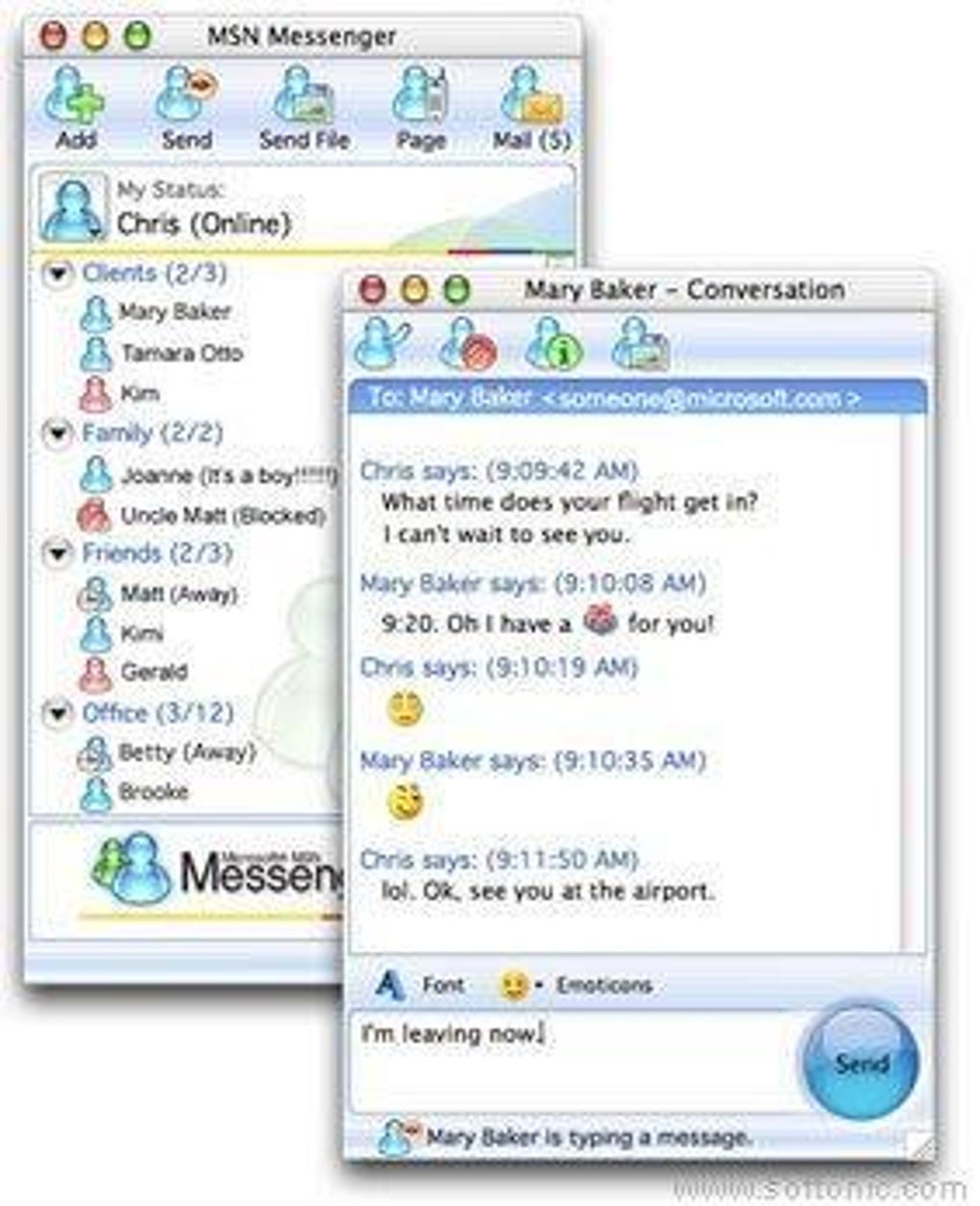
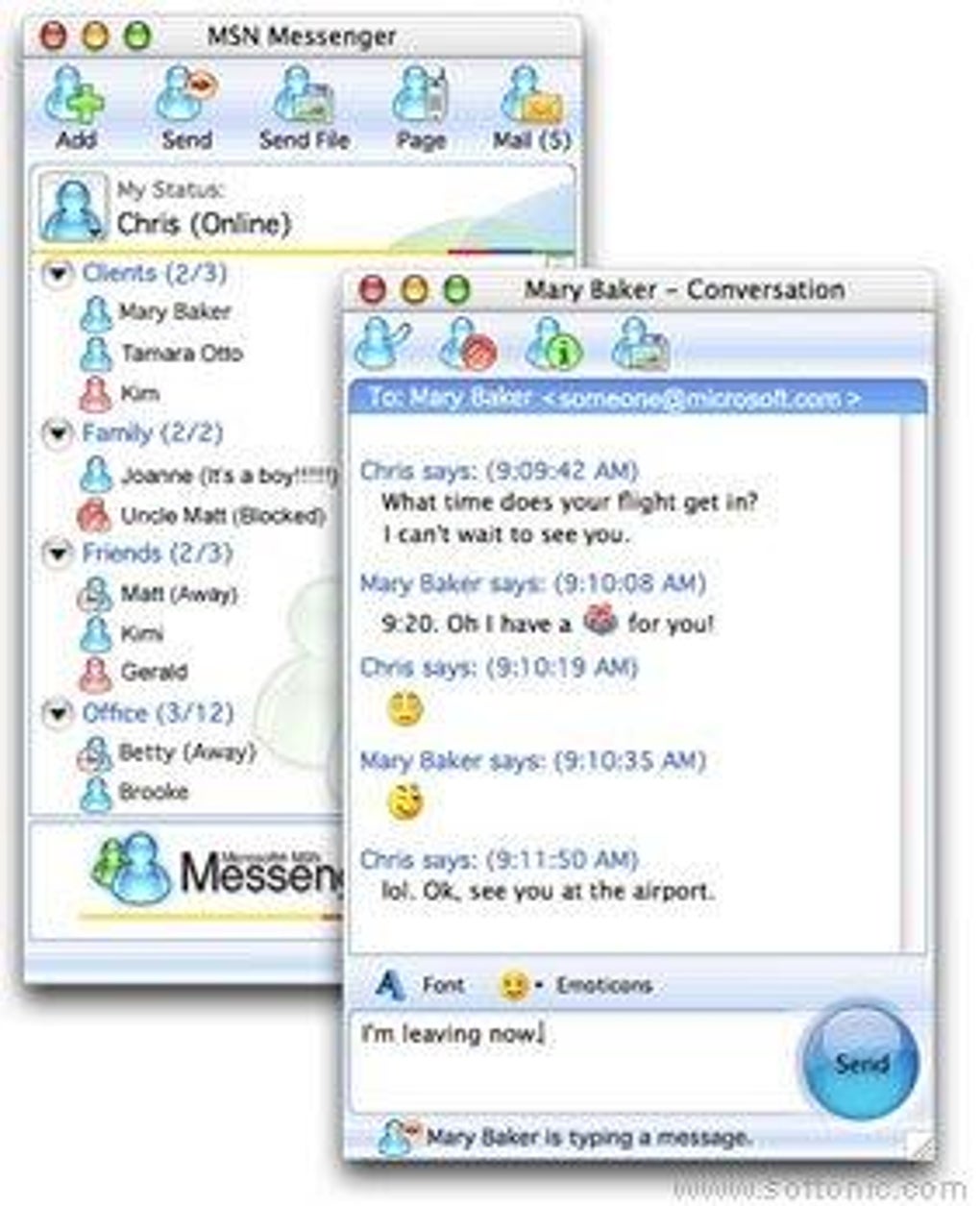
MSN Messenger for Mac OS X 10.2.8‑10.3.9 is the classic instant‑messaging client that introduced many of the features we now take for granted in modern chat apps. Although Microsoft has moved the main Messenger brand to Skype, this legacy version remains the only functional client for older PowerPC‑based Macs that cannot run the newer Messenger for Mac or Skype. It delivers the essential set of tools: contact organization, status indicators, emoticons, and simple file transfer. While it lacks webcam support—reserved for the corporate edition—the core messaging experience is stable, lightweight, and surprisingly easy to use on legacy hardware. If you’re still running OS X 10.3.9 or earlier, this version offers a secure way to stay connected with friends and colleagues who still use the Windows Live ecosystem.
Key Features
- Contact grouping and custom status messages
- Rich emoticon library for expressive chats
- Separate window for each conversation, freely movable on screen
- One‑click access to Hotmail/Outlook.com inbox via the Mail button
- Basic file and image transfer (though slower on older connections)
- Support for multiple accounts (Hotmail, Live, Outlook.com)
- Lightweight footprint suitable for low‑RAM PowerPC Macs
Compatibility
MSN Messenger is officially compatible with Mac OS X 10.2.8 through 10.3.9. Microsoft recommends at least 10.3.3 for optimal stability, but the client will still launch on 10.2.8 if needed. It runs on both PowerPC and early Intel‑based Macs that support these OS versions. Because the software predates modern security frameworks, it does not receive automatic updates; however, the final released build is considered safe for offline use and basic messaging.
Installation & Usage Instructions
Getting MSN Messenger up and running on an older Mac is straightforward, but there are a few steps that can save you time and avoid common pitfalls.
- Download the installer: Locate a reputable archive site that still hosts the “MSN Messenger for Mac OS X 10.2.8‑10.3.9” DMG file. Verify the file size (approximately 12 MB) and, if possible, check the SHA‑1 checksum against the original Microsoft release notes.
- Mount the DMG: Double‑click the downloaded file to mount the disk image. A new Finder window will appear showing the application bundle.
- Copy to Applications: Drag the “MSN Messenger.app” icon into your /Applications folder. This ensures the app has the proper permissions to write settings and logs.
- Allow the app to run: Because the software is unsigned, macOS may block it. Open System Preferences → Security & Privacy → General, then click “Open Anyway” next to the MSN Messenger warning.
- Launch and configure: Open MSN Messenger from the Applications folder. The first launch will prompt you for your Microsoft account (Hotmail, Live, or Outlook.com). Enter your credentials, and optionally enable “Remember password” for quicker access.
- Set your status and groups: Once logged in, use the status drop‑down to indicate availability (Online, Away, Busy, etc.). Drag contacts into custom groups (Friends, Work, Family) on the left pane for easy organization.
- Start chatting: Double‑click a contact to open a new conversation window. Each window can be resized, minimized, or moved independently, mirroring the classic Windows experience.
- Send files: Click the paper‑clip icon in the chat bar, select a file, and confirm. The transfer will begin, but expect slower speeds on dial‑up or early broadband connections.
For users who need to troubleshoot connectivity, verify that ports 80 (HTTP) and 443 (HTTPS) are open on any firewall or router. MSN Messenger uses these ports for authentication and message exchange. If you encounter “Unable to connect” errors, a quick restart of the app and a check of your internet connection usually resolves the issue.
Because the client does not support webcams, you’ll need an external solution (e.g., Skype or a web‑based video chat) for video calls. However, the text‑based chat is robust and reliable, making MSN Messenger a solid choice for simple, low‑bandwidth communication on legacy Macs.
Pros & Cons
Advantages
- Lightweight footprint: Uses minimal CPU and RAM, keeping older Macs responsive.
- Classic UI: Familiar layout for longtime users of the original MSN Messenger.
- Contact grouping: Easily organize friends, family, and work contacts.
- Secure login: Relies on Microsoft’s authentication servers, which remain active for legacy accounts.
- Free download: No hidden fees or subscription required.
Drawbacks
- No webcam support: Video chat is unavailable unless you upgrade to the corporate edition or switch to Skype.
- Limited file‑transfer speed: Large files may take considerable time on older network hardware.
- Outdated security patches: The last official update was released over a decade ago; the client does not receive new security fixes.
- Incompatible with newer macOS versions: Cannot be installed on OS X 10.4 or later.
- Missing modern features: No emojis, stickers, or integrated voice calls that contemporary messengers provide.
Overall, MSN Messenger for Mac OS X 10.2.8‑10.3.9 scores a solid 3.5 out of 5. It shines as a lightweight, no‑frills instant messenger for legacy systems, but its lack of webcam support and outdated security make it less suitable for today’s security‑conscious users.
Frequently Asked Questions
Can I use MSN Messenger on macOS Catalina or later?
No. The legacy client only runs on OS X 10.2.8‑10.3.9. For newer macOS versions you’ll need to upgrade to the modern Messenger for Mac or switch to Skype.
Is the download safe and free of malware?
When sourced from reputable archives or directly from Microsoft’s legacy page, the installer is safe and free of adware. Always verify checksums if they are provided.
Why doesn’t MSN Messenger support webcams?
Webcam functionality was reserved for the corporate edition of the client. Microsoft chose not to include it in the free version for Mac, likely due to hardware limitations on older PowerPC Macs.
Can I send files larger than 10 MB?
Yes, but transfer speed will be limited by your connection and the older protocol used by the client. For large files, consider using a cloud‑storage link instead.
Is there a way to receive notifications when a new message arrives?
MSN Messenger includes basic pop‑up alerts for new messages. You can enable or disable them in the Preferences → Alerts section.
Conclusion & Call to Action
MSN Messenger for Mac OS X 10.2.8‑10.3.9 remains a reliable, free instant‑messaging tool for users who are still tied to legacy PowerPC hardware. It delivers the core functions—contact groups, status messages, emoticons, and simple file sharing—without the bloat of modern apps. However, the absence of webcam support, outdated security patches, and incompatibility with newer macOS releases mean it’s best suited for light, text‑based communication on older machines.
If your Mac meets the minimum system requirements and you need a lightweight chat client that won’t tax your processor, go ahead and download MSN Messenger today. For anyone looking for richer features, stronger security, or video calling, consider upgrading your operating system and moving to the latest Messenger for Mac or Microsoft’s recommended replacement, Skype.
Stay connected, stay secure, and choose the tool that matches your hardware—whether that’s the classic MSN Messenger or a modern alternative.
Guides & Tutorials for MSN Messenger
How to install MSN Messenger
- Click the Preview / Download button above.
- Once redirected, accept the terms and click Install.
- Wait for the MSN Messenger download to finish on your device.
How to use MSN Messenger
This software is primarily used for its core features described above. Open the app after installation to explore its capabilities.
User Reviews for MSN Messenger 0
No reviews found





.webp)